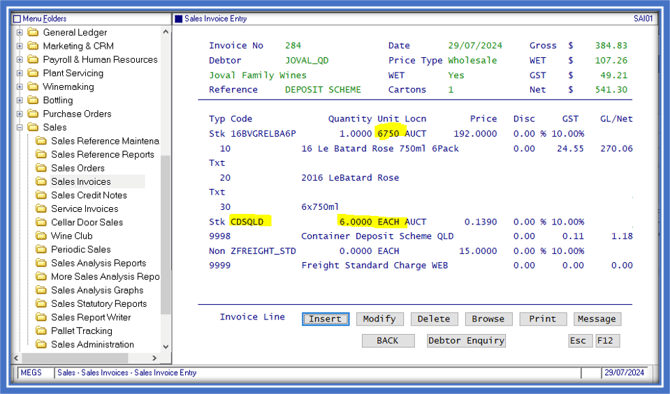
Steps to follow:
- Create stock item prices
- Apply to stock units
- Modify Debtors
- Create Stock Adjustment
- Create a test Invoice
Create New Stock Item for Container Deposit.
Stock Control → Stock Reference Maintenance → Stock Item
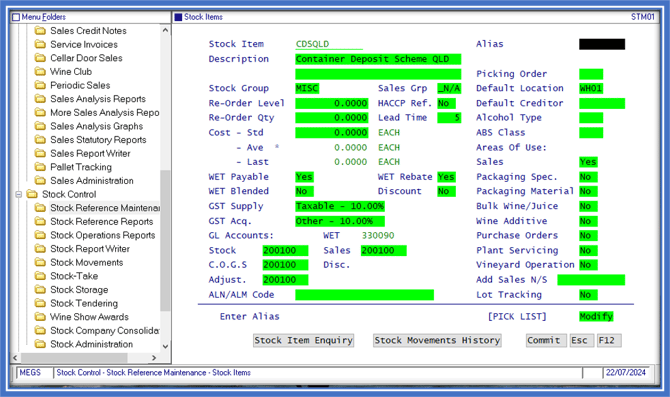
Include GST — Yes; Wet Payable — Yes; Wet Rebate— Yes; Area of Use Sales — Yes
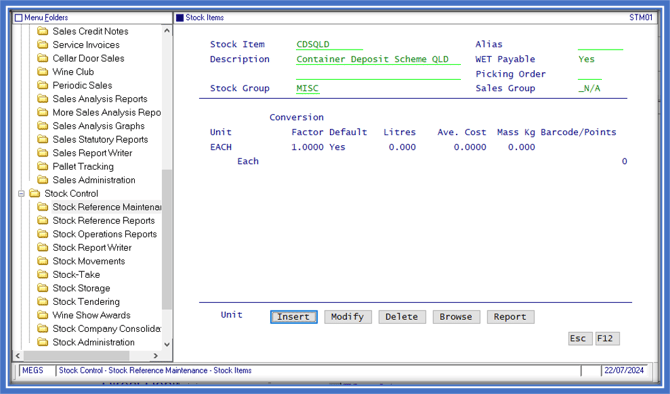 Unit
Unit
Set the unit to Each
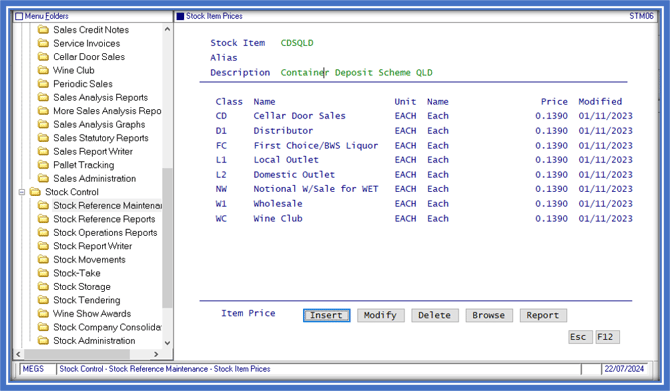
Stock Item Prices
Stock Control →Stock reference maintenance → Stock Prices
Add stock item prices for the container deposit scheme amount.
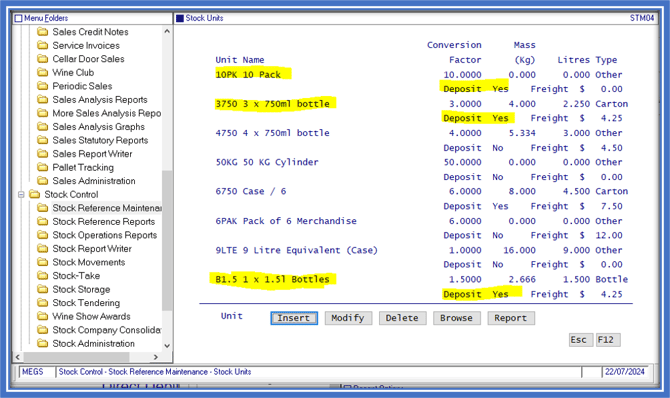
Stock Units.
Stock Control → Stock Reference Maintenance → Stock Units
Change the Deposit field to YES for each unit that can be returned for the deposit.
Modify Debtors
Accounts Receivable Maintenance → Debtors.
Modify and add the new stock item to the Deposit Item Field.
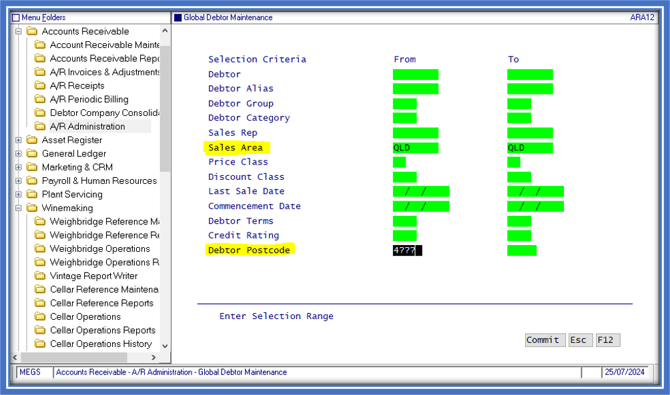
Alternatively, you can modify several debtors at once through Global Debtor Maintenance.
Accounts Receivable → A/R Administration → Global Debtor Maintenance
Select Debtors the Deposit Scheme stock item applies too, in this instance Sales Area = QLD debtors or, possibly, postcode.
On the next screen change Deposit Item field to Yes and enter the stock item for the Deposit Scheme & Commit.
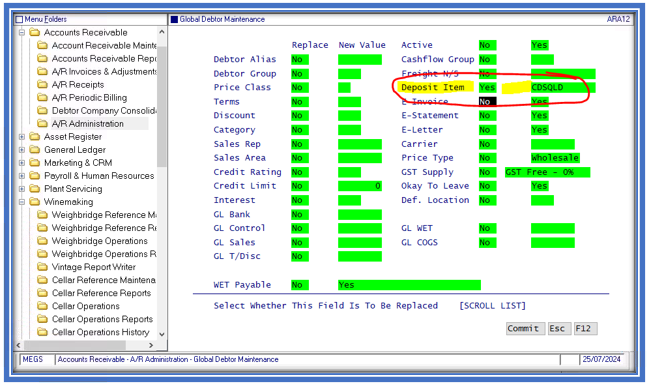
You will need to COMMIT on the second entry screen that contains Additional Groups.
When prompted Generate Global Changes? select YES.
The system will then display the debtors that matched your initial selection criteria.
Select ESC to generate the changes.

Create a Stock Adjustment
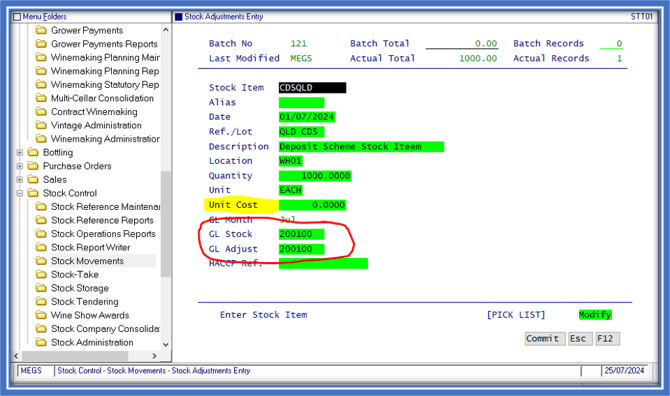
Stock Control → Stock Movements → Stock Adjustment Entry
A Stock Adjustment is required to bring in some stock items.
Note
Container Deposit Scheme must be a stock item due to WET.
Ensure you bring the stock in at zero cost.
Use the same GL Code for Stock Control and Adjustment so there is Zero impact on the General Ledger.
Check your listing and update.
Generate Sales Invoice
Sales → Sales Invoice Entry
Create a sale for a debtor you have just applied the new stock item too.
On the Stock entry screen the new stock item will appear automatically.
Enter stock items in the Sale and the Deposit Stock Item will automatically calculate the number of units and the amount.