
To create a new user you will need access to the System administration Menu & User Access Folder.
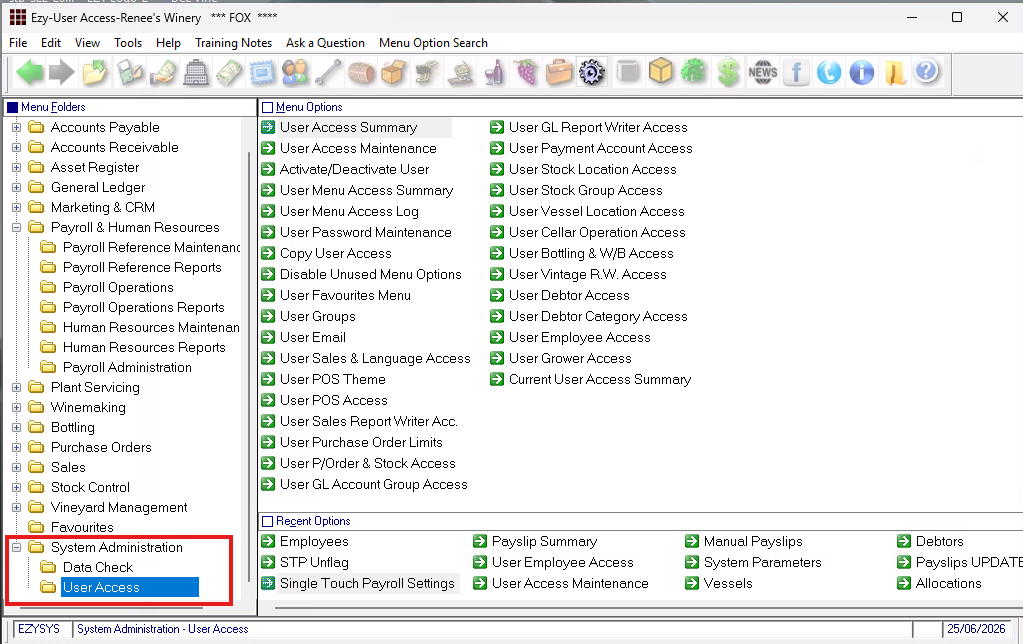
Open the user access folder and go to the user access maintenance menu.
Use Insert for a New employee.
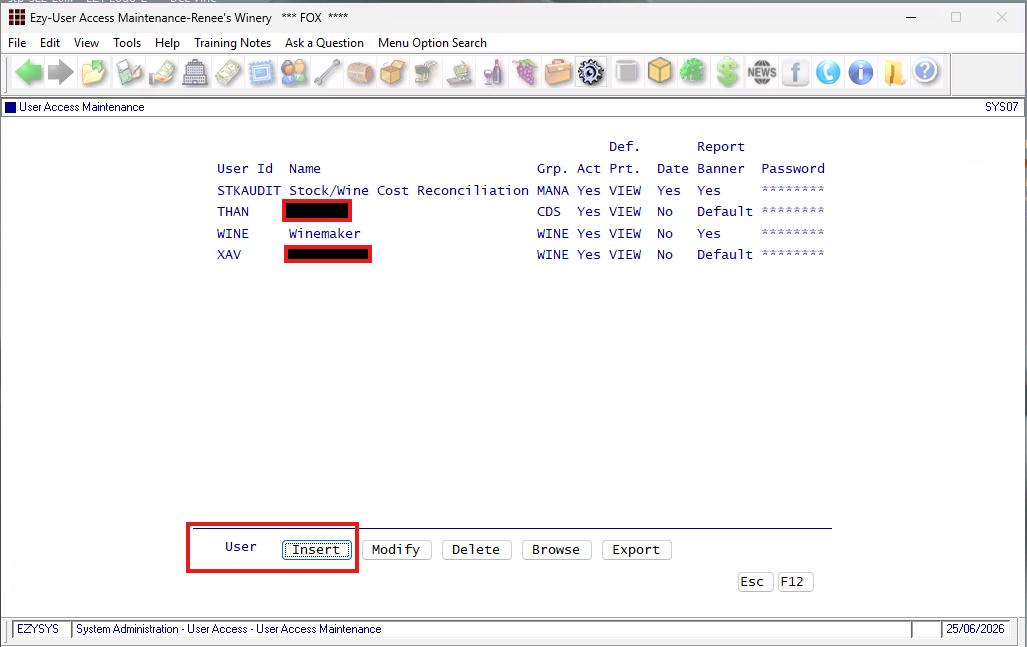
Create a User ID - often part of the employee's name.
in the second field enter the employee's full name. First name followed by surname
Assign a user group to the employee - user groups may have restrictions to what areas of the system a user can access.
Active column set to YES - this indicates a active employee. when this employee ceases employment you will set it to no.
Default Printer (Def. Prt.) column - select the printer in the location for that employee or View is you PDF viewer
Date - strongly recommend set to NO for general users & only high level Admin should have this permission, to log in on a different date.
Report banner should be set to default.
Password: enter the employee password that will be used to log in. User ID & password cannot be the same.
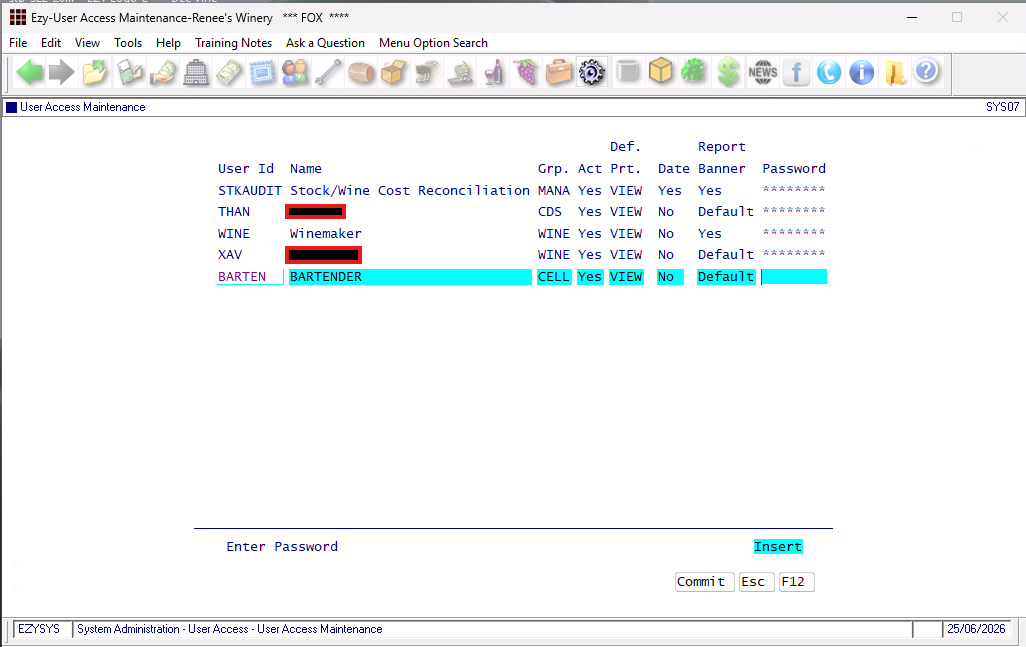
You will now be prompted do you wish to Copy access ofrom Another User? Select Yes

Enter the user ID you wish to copy from.
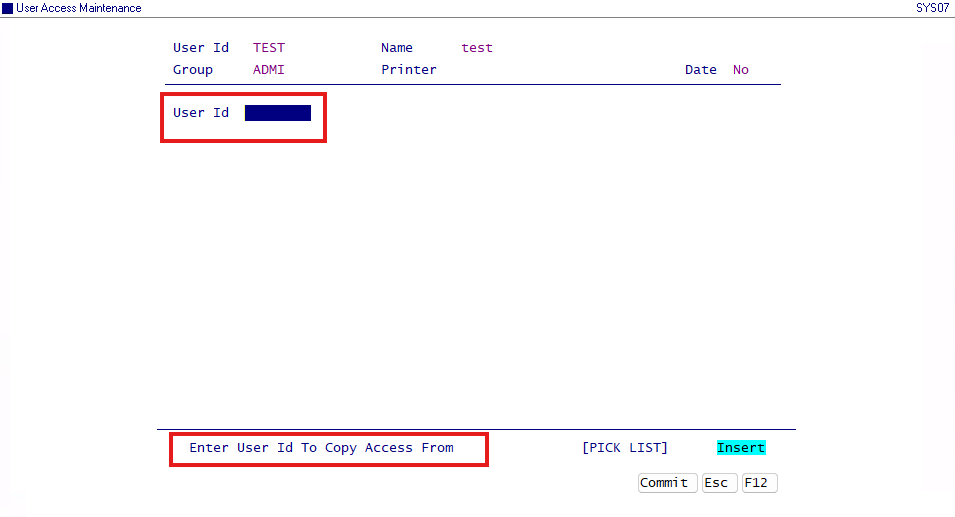 The system will then copy over the same permissions as the user Id you copied from.
This will allow you to now make any adjustments to the permissions
Access menu = Yes
Denied Menu access = No
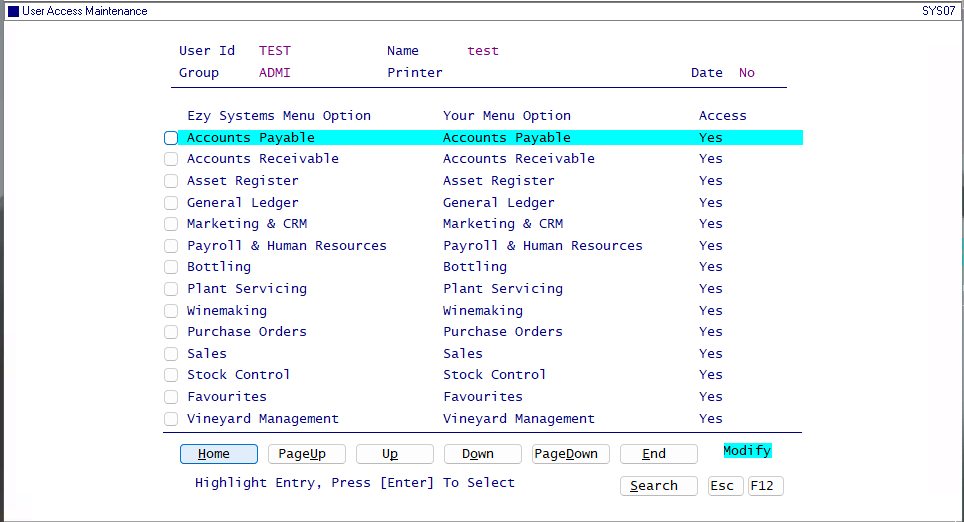 Once you have reviewed the menu options the user has access to on the screen use the escape to move out of the menu & ask the new user to log in to check the password you created for them is working.
Please ensure staff adhere to your company policies regarding storing passwords & cyber security.