
⚠ Important: Log out of all Ezy applications on your machine before starting. Installing files while Ezy is open may cause errors.
Please review the accompanying email carefully, as in some cases all users may be required to log out of the program.
What You Need
- A file archiving program installed on your computer (e.g. 7-Zip, PeaZip, or the built-in Windows extraction tool)
- The ZIP file provided by Ezy Systems (e.g. SCR20260008.ZIP), saved to the server or another accessible file location.
- Access to your server and the Ezy root folder
Installation Steps
- Log out of all Ezy applications running on your machine (refer to your email to confirm whether all users are required to log out).
- Open the ZIP file — usually by double-clicking the saved attachment.
- Extract the contents of the ZIP file to the TESTPRG folder inside your Ezy root folder on the server. How to find Ezy Root File Location.
- You may see a prompt asking whether to replace files in this location. Select Yes to continue.
- Once extraction is complete, log back into Ezy and verify the update has been applied.
- Running a Rebuild Indexes process may be required. Please refer to the accompanying email if required.
Note: Use the Extract All option in the toolbar. This will allow you to choose the TESTPRG folder as the location to save the extracted files.

You may see a security warning — this is normal. If prompted to Open or Save, select Open. Your archiving program will launch
How to find the Ezy Root File Location
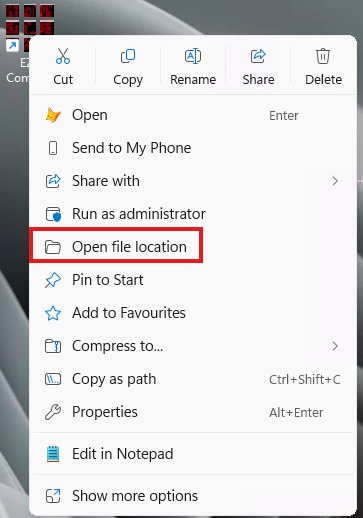
The TESTPRG folder is where Ezy program files are stored. To locate it: right-click the Ezy icon on your desktop, select Open File Location. This will open File Explorer at the Ezy program location. Note the drive/file path as this will be required to be selected when extracting the zip files.
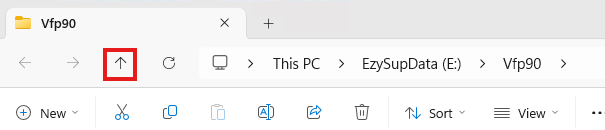
Depending on which Ezy icon you used and how many datasets are configured, you may need to click the Up arrow in File Explorer one or two times to locate the TESTPRG folder. If you still cannot find it, please contact Ezy Systems support or your IT administrator for assistance.
How to Verify the Update
After logging in, you can confirm the program has been updated:
- To confirm the version date of a specific program, open the menu option option and click the Information button (third from the right on the toolbar). A PDF will be generated, and the program details, including the version date, will appear in the top-right corner of that PDF. You will be looking for a version date that matches that of the dates in the SCR file.

Once you have installed your update, you can check the functionality of the changes by logging back into Ezy and navigating to the areas outlined in the release email. Test the key processes that are affected (for example, running the updated reports, processing a sample transaction, or reviewing any new screens or fields) to confirm they behave as described and produce the expected results.
|
Still need help? Contact our support team at support@ezysystems.com.au and we will be happy to assist. |