
|
Document purpose: This step-by-step guide walks you through the configuration and process changes required in FOXPRO to comply with the ATO's new Payday Super legislation. |
What Is Payday Super?
From 1 July 2026, the Australian Government requires employers to pay superannuation contributions on the same day (or next business day) as employee wages, rather than quarterly.
What this means for you
- Super must be calculated and paid with every pay run
- Your super fund will receive payments much more frequently (fortnightly or weekly rather than quarterly)
- FOXPRO will handle most of this automatically - You just need to complete the configuration steps in this guide.
⚠️ Important: Penalties may apply for late or missed super payments from 1 July 2026. There is no grace period once the legislation takes effect.
System Configuration Changes
Processing a Pay Run Under Payday Super
Reporting on Super Contributions
System Configuration Changes
Set Payday Super System Parameters
Before your first Payday Super pay run, Set the following parameters.
Steps:
- From the main menu, go to System Administration > System Parameters
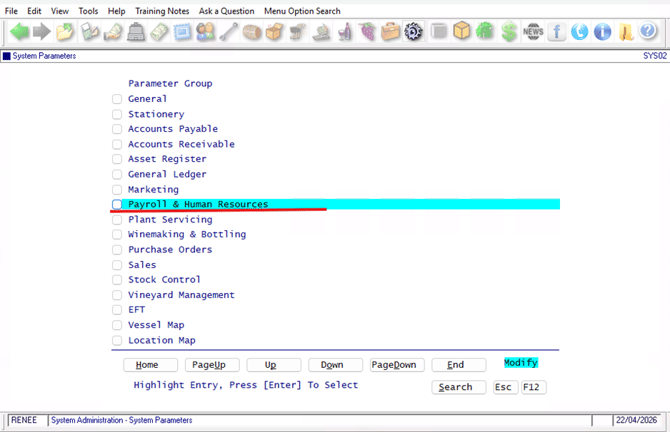
- Select the Payroll & Human Resources parameter group — once selected, the list of parameters will load automatically.
- At the bottom of the screen, in the Search For field, type PAYDAY and click First.
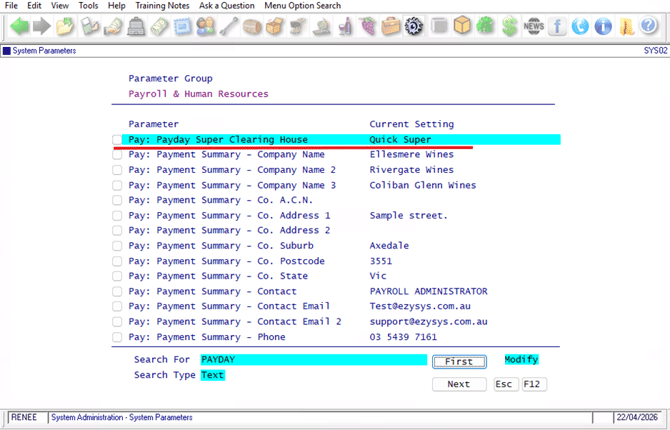
- The system will jump to the Pay: Payday Super Clearing House parameter (highlighted in the list).
- Click Modify
- Use the spacebar to toggle through the available options and select the export format that matches your super clearing house.
|
Format |
Use when… |
|
EZY |
Generic export format for viewing super data for reporting only — not for clearing house uploads. |
|
HOST+ |
Using HostPlus |
|
EPS |
Using EPS |
|
EPS Standard |
Using EPS Standard format |
|
QUICKSUPER |
Using QuickSuper |
|
SUPERSTREAM |
Generic SuperStream format |
|
NAB |
Using NAB Transact super payments |
|
SUPER PAY |
Using Super Pay |
|
STATEWIDE |
Using Statewide Super |
|
SAFF |
Using SAFF format — accepted by most clearing houses |
|
AUST SUPER |
Using Australian Super |
|
IOOF |
Using IOOF |
- Select your format and press Commit to save.
-
Set the Pay:Payment Summary - Company Name Parameter
-
In the Search For field, type COMPANY and click First.
-
The three Company Name parameters will appear consecutively in the list.
- If your clearing house company name is longer than 30 characters, highlight Pay: Payment Summary — Company Name 2, click Modify, and enter characters 31–60. Press Commit to save.
- If your clearing house company name is longer than 60 characters, highlight Pay: Payment Summary — Company Name 3, click Modify, and enter characters 61–90. Press Commit to save.
- Leave any unused fields blank.

💡 Tip: Press F10 while the parameter is selected to read the built-in help notes for that parameter. This will provide additional guidance on the available options directly within the system.
💡 Tip: If you are unsure which format to select, check with your super clearing house provider.
Before you begin: Check the company name registered with your superannuation clearing house. If it matches the company name in your General system parameters, do not set these parameters — leave all three fields blank.
Review Superannuation Schemes & Add Creditor Code
Each employee super fund is set up as a Superannuation Scheme. Review each scheme for accuracy.
New Feature - if you want automatic AP invoices created each pay run, enter its Creditor code in the Creditor field. Ensure you have a creditor set up.
Steps:
- Navigate to Payroll & Human Resources > Payroll Reference Maintenance > Superannuation Schemes.
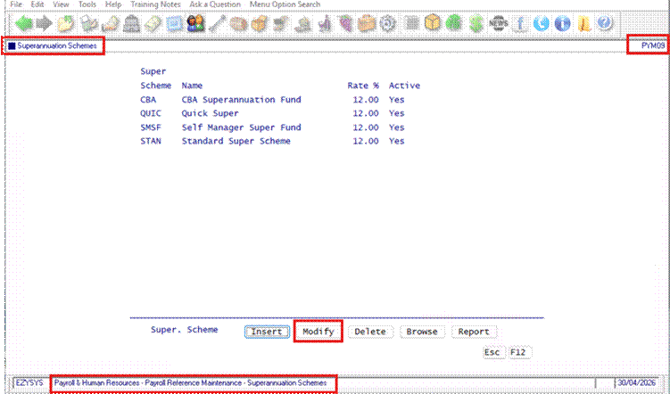
2. Select the first scheme and click Modify.
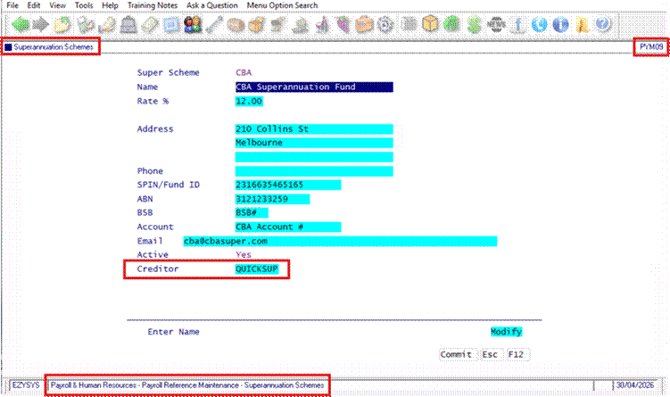
3. Review and confirm the following details are correct for the scheme:
- Name — full name of the super fund
- Rate % — must be set to 12.00 from 1 July 2026
- Address — fund's mailing address
- SPIN / Fund ID — the fund's Superannuation Product Identification Number (spin numbers are being phased out & replace with USi numbers).
- ABN — the fund's ABN
- BSB and Account — the fund's bank details for EFT payment
- Email — fund contact email
- Active — confirm this is set to Yes
-
Creditor - enter your creditor code for your Clearing House
New feature
- When Payslips Update runs, FOXPRO creates an AP invoice for the super amount, to be paid via Creditor Payment Maintenance (APP02).: Payday Super Creditor Payments
- This field is optional and only needed if you pay super via Accounts Payable. If you use Cash or General Journals, leave the Creditor code blank.
Considering switching from journals to creditor payments? Using the Creditor field and AP Payments lets you generate an ABA file for super, reducing manual errors and supporting Payday Super compliance.
Verify Super Details on Employee Card Files
Each employee’s super fund details are stored on their FOXPRO card file. Confirm every employee has the correct fund, scheme and policy number before your first Payday Super pay run.
Program: Payroll & Human Resources → Payroll Reference Maintenance → Employees
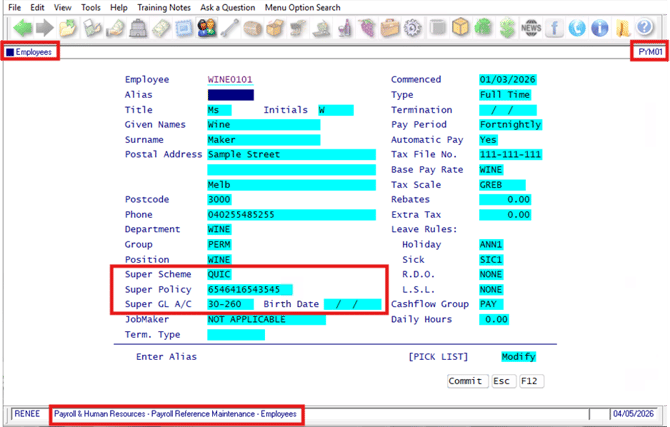
- Use the Pick List (or type the employee code) to open an employee record.
- Confirm the following fields are correctly populated:
- If any field needs updating, click Modify, make the correction, then press Commit to save.
- Repeat for each employee.
Tip: If an employee’s Super Scheme is blank or incorrect, they will be excluded from the super export file — always check this before your first Payday Super pay run.
Tip: Contact details in the wrong format can also cause import failures. Check your clearing house requirements (for example, no plus signs in phone numbers and all postcodes entered).
Processing a Pay Run Under Payday Super
Process your pay run as normal Automatic Manual Payslips right through to Payslips UPDATE.
⚠️The changes to your workflow all happen at this step and beyond.
Payslips UPDATE — Two New Fields
Navigate to Payroll & Human Resources > Payroll Operations > Payslips UPDATE
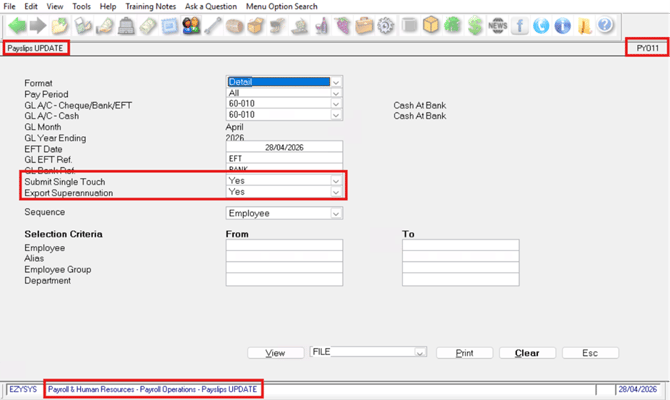
Submit Single Touch (STP) — Yes / No
- Setting this to Yes will automatically submit the STP file to the ATO via MessageXchange when Payslips UPDATE is run.
- The system will default to Yes — it is recommended to leave this set to Yes.
- This removes the need to go to a separate menu to submit your STP, making your pay run process simpler and faster.
Export Superannuation — Yes / No
- Setting this to Yes will automatically generate the super export file in the format set in your Pay: Payday Super Clearing House system parameter (see Section 3.1).
- The system will default to Yes — it is recommended to leave this set to Yes.
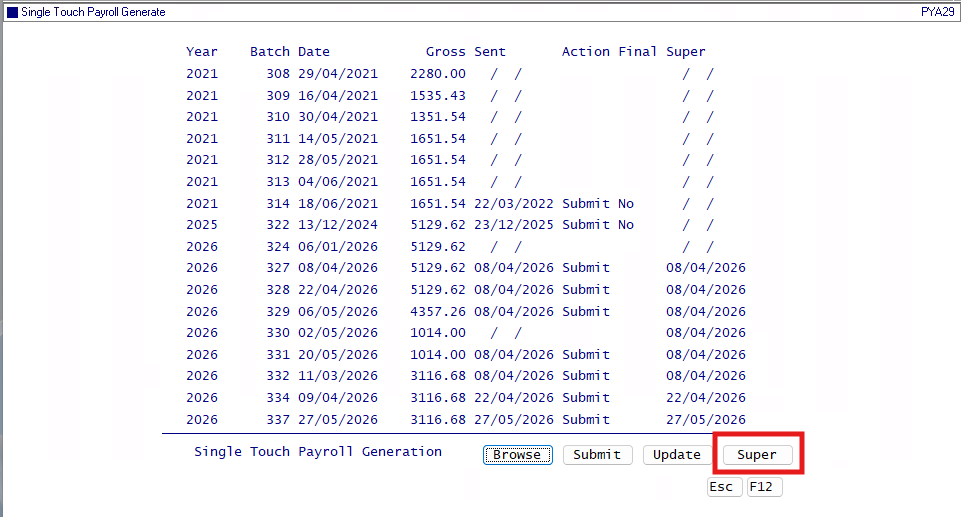
- If set to No, no export file will be generated automatically. To manually generate the super file use Single Touch Generate menu.
Tip: If an employee’s Super Scheme is blank or incorrect, they will be excluded from the super export file — always check this before your first Payday Super pay run.
Tip: Contact details in the wrong format can also cause import failures. Check your clearing house requirements (for example, no plus signs in phone numbers and all postcodes entered).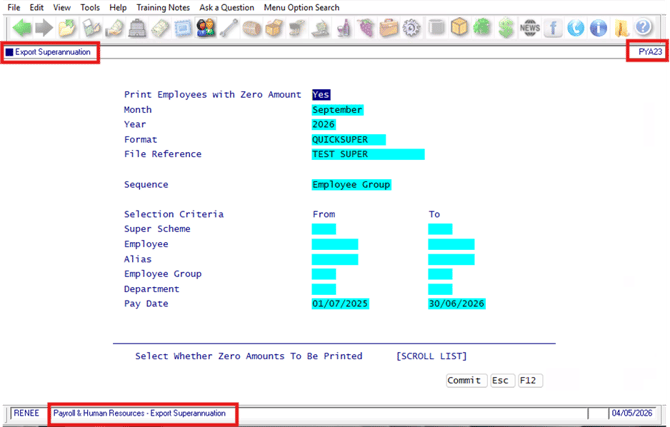
Run Payslips UPDATE
After confirming both fields are set to Yes, click View or Print to run Payslips UPDATE.
The following three things will happen in sequence:
Payslips UPDATE PDF
The Payslips UPDATE report will display on screen, showing all GL postings for the pay run, including superannuation.
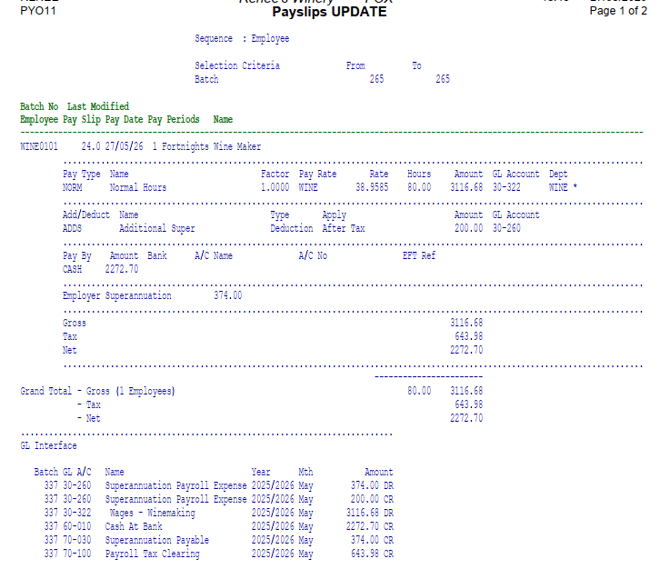
Save this report to a location of your choice for your records.
STP Confirmation from MessageXchange
After the PDF generates, a confirmation message from MessageXchange will appear on screen.
This confirms the STP file has been successfully submitted to the ATO. Click OK to continue.
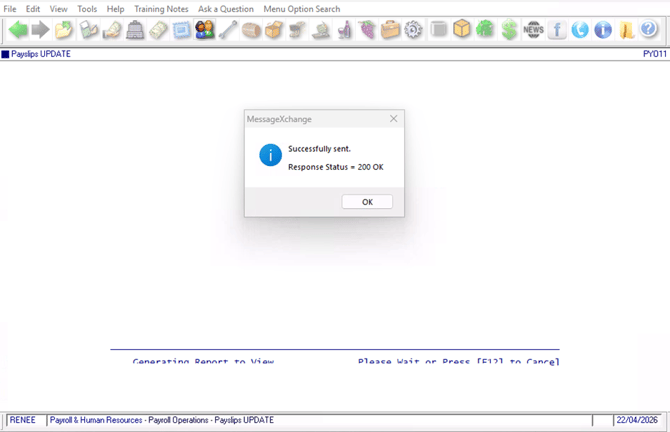
⚠️ If you receive a fail message, continue with the rest of your Payday Super process and then investigate the STP issue separately.
Before contacting Ezy Systems Support, please check the following:
-
Confirm you have an active internet connection
-
Confirm the SSID number provided by Ezy Systems has been added to your ATO portal
- Check you Colladium account
Save the Payday Super Export File
A Save As window will appear, prompting you to choose where to save the super export file.
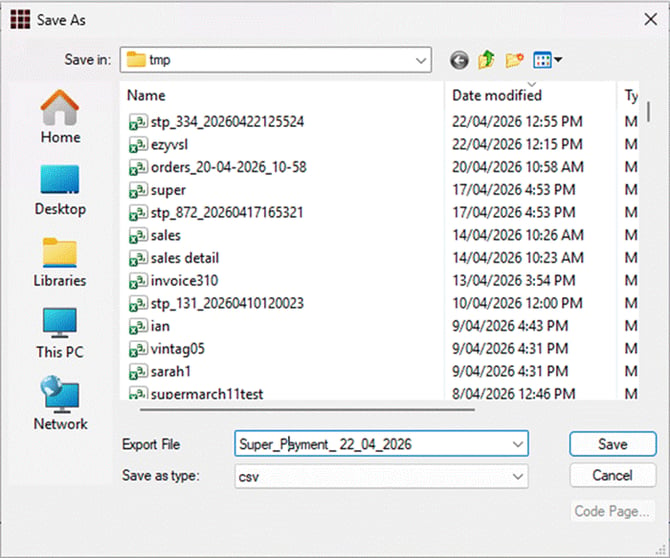
- Navigate to the folder where you want to save the file.
- In the Export File field, give the file a meaningful name — for example: Super_Payment_Date.
- The file will save as a CSV file by default.
- Click Save
If you need to manually generate the superannuation CSV file use PYA29 Single Touch Generate, use the Super button to create the export file.
🚨Cyber Safety Reminder: Superannuation files contain sensitive data that should not be shared please ensure your save location has restricted access & consider deleting the file after a successful import.
Generate EFT File & Pay Employees as Normal
Submit the Super File & Payment to Your Clearing House & Payment
Generate Creditor Payment or Create journal entry.
See the related guide for full steps: Payday Super Creditor Payments
Reporting on Super Contributions
The Employee Yearly Spreadsheet report includes a Payday Super format that shows each employee’s total super for the year, by month, making it easy to review, reconcile, and answer employee queries.
- Navigate to Payroll & Human Resources > Payroll Operations Reports > Employee Yearly Spreadsheet.
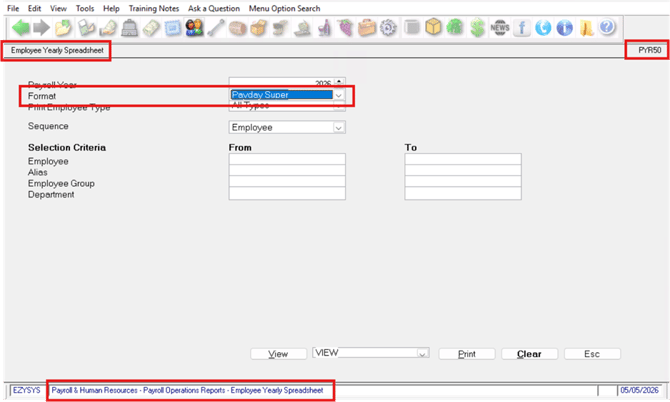
- Confirm the Payroll Year is correct (e.g. 2026).
- Set the Format field to Payday Super — this is the new format option for viewing super contributions.
- Confirm or set the remaining fields:
- (Optional) In Selection Criteria, enter From/To values for Employee, Alias, Employee Group or Department to limit the report to specific records. Leave blank to include all employees.
- Click View to preview the report or Print to print it directly.
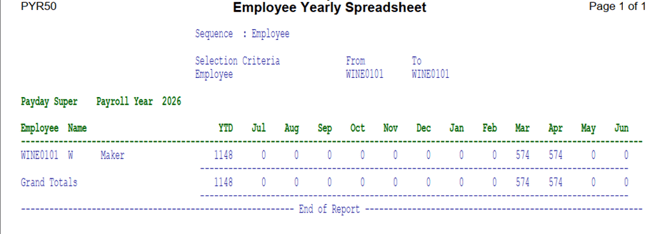
The monthly columns show the total of updates processed in that month; they are not broken down by individual days.