
1. Before you Begin
Before processing the superannuation creditor payment, confirm the following have already been completed for this pay run:
- ✅Payslips have been processed (Automatic or Manual Payslips)
- ✅Payslips UPDATE (PY011) has been run with Submit STP and Export PayDay Super ticked on the Update Options tab
- ✅ The Payslips UPDATE PDF has been saved
- ✅ The A/P Invoice & Adjust. UPDATE PDF (APT03) has been saved — this confirms the AP invoice has been auto-created for the super amount
- ✅ The MessageXchange STP confirmation (200 OK) has been received
- ✅The superannuation export CSV file has been saved ready for upload to your clearing house
⚠️Important: For the AP creditor payment to generate correctly, the superannuation fund’s creditor code must have been added to the Superannuation Schemes screen (PYM09) before Payslips UPDATE was run for this pay run. If this was not done, please contact Ezy Systems Support.
💡Tip: Make a note of the Batch number shown on the A/P Invoice & Adjust. UPDATE report — this is the AP batch that holds the auto-created super invoice and you will see it referenced through the steps below.
2. Select Your Superannuation Creditor
The APP02 screen has two tabs:
You’ll start on the Selection tab, filter to your superannuation creditor, then open their record to enter the payment.
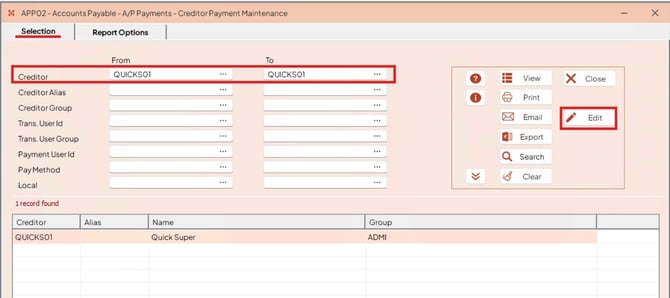
Navigate to Accounts Payable > A/P Payments > Creditor Payment Maintenance (program APP02).
On the Selection tab, enter your superannuation fund creditor code in both the Creditor From and To fields (e.g. QUICKS01 to QUICKS01) to restrict the search to that creditor only.
💡Tip: Click the three-dot button (...) next to either field to open the search tool if you are unsure of the creditor code — it will display all creditors available in your system and let you filter or search by name or code.
Leave the remaining selection criteria fields (Creditor Alias, Creditor Group, Trans. User Id, Trans. User Group, Payment User Id, Pay Method, Local) blank.
Click Search in the right-hand toolbar. The matching creditor will appear in the results list at the bottom of the screen (e.g. QUICKS01 — Quick Super).
Click Edit to open the creditor’s payment maintenance record.
3. Review & Enter the Payment Amount
After clicking Edit on the Selection tab, the Creditor Payment Maintenance — Edit window will open. The screen has three areas:
- Header (top) — shows the Creditor, Name, Payment Method, Bank Balance and Payment Total
- Invoice list (bottom-left) — displays all outstanding invoices for that creditor with columns Date, Description, Amount, Payment, Discount and On Hold
- Detail panel (right) — shows the full details of the invoice currently selected in the list
As superannuation must be paid at the same time as wages, you should see only one invoice listed here for the current pay run — the invoice that was auto-created during Payslips UPDATE (see the A/P Invoice & Adjust. UPDATE step in the related System Changes Guide).
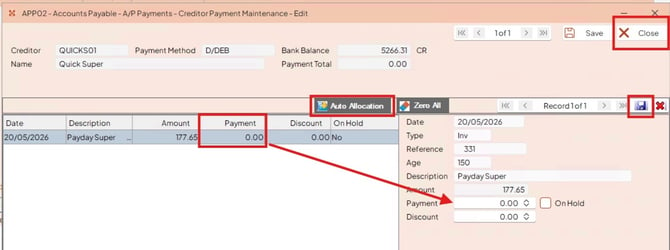
The screen will display the following details:
|
Section / Field |
Description |
|
Header — Creditor |
The superannuation fund creditor code (e.g. QUICKS01) |
|
Header — Name |
The creditor name (e.g. Quick Super) |
|
Header — Payment Method |
The creditor’s default payment method — e.g. EFT, BPAY, D/DEB (Direct Debit), Cheque or C/CARD, depending on how the creditor is set up |
|
Header — Bank Balance |
Your current bank balance |
|
Header — Payment Total |
Updates as you enter or allocate the payment amount |
|
Invoice list — Date |
The date the invoice was raised (your pay run date) |
|
Invoice list — Description |
Payday Super |
|
Invoice list — Amount |
The superannuation amount calculated in the pay run |
|
Invoice list — Payment |
The amount you are paying — populates when you allocate the payment (see below) |
|
Invoice list — Discount / On Hold |
Discount amount and On Hold status — both blank/No for super |
|
Detail panel — Type |
Inv (Invoice) |
|
Detail panel — Reference |
The payslip batch number |
|
Detail panel — Age |
Days since the invoice was raised |
Apply the payment
You have two ways to apply the full payment amount in EZYPro:
|
Method |
How |
|
1. Double-click the Payment field |
Double-click directly in the Payment column for the Payday Super invoice. The field will auto-populate with the full Amount. |
|
2. Auto Allocation button |
Click Auto Allocation at the top of the invoice list. This automatically allocates the full payment for all visible invoices. |
💡Tip: Either method achieves the same result. The Payment field will populate with the full amount of the invoice. Confirm the figure in the Payment column matches the figure in the Amount column before proceeding.
⚠️Important: It is not recommended to process a partial payment of superannuation.
Paying less than the full amount will cause a mismatch between the superannuation export file (which contains the full amounts) and the payment submitted to the clearing house. This can result in the clearing house being unable to match and process the payment, delaying superannuation reaching your employees’ funds and potentially triggering ATO compliance issues.
Save the record
Once the Payment field is populated:
Click the Save icon (next to the record navigation) to save your changes to this record.
Click Save at the top of the window to commit the payment record.
Click Close to exit the Creditor Payment Maintenance Edit window.
4. Review the Creditor Payment Listing (APP03)
After saving the payment in APP02, navigate to Accounts Payable > A/P Payments > Creditor Payment Listing (program APP03) to generate a verification report.
The APP03 screen has two tabs:
- Selection — where you filter the report by Creditor and other selection criteria.
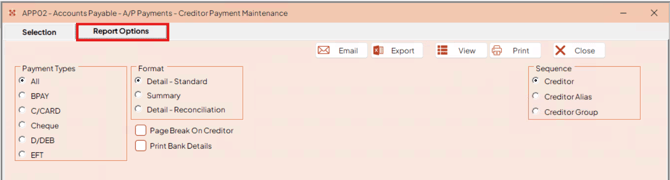
- Report Options — where you choose Payment Types, Format, Sequence and any extra report options.
On the Selection tab, enter your superannuation fund creditor code in both the From and To Creditor fields (e.g. QUICKS01 to QUICKS01). Use the three-dot search tool (...) next to either field if needed.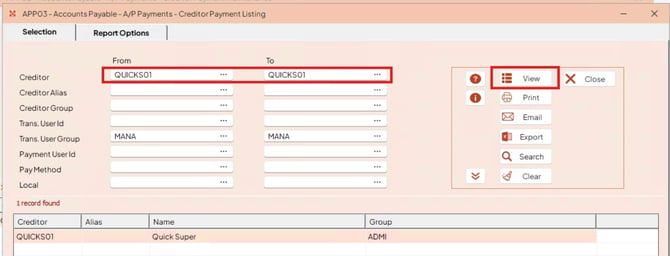
Leave the remaining selection criteria (Creditor Alias, Creditor Group, Trans. User Id, Trans. User Group, Payment User Id, Pay Method, Local) blank — unless you have a specific reason to filter by these.
Switch to the Report Options tab to confirm or set the report settings:
|
Field |
Recommended Setting |
|
Payment Types |
All unless restricting to a specific type (BPAY / C/CARD / Cheque / D/DEB / EFT) |
|
Format |
Detail - Standard is the default. Summary and Detail - Reconciliation are also available. |
|
Sequence |
Creditor (default) |
|
Page Break On Creditor |
Leave unticked unless your report includes multiple creditors |
|
Print Bank Details |
Leave unticked unless required for review |
💡Tip: In EZYPro, the GL postings are included on all report formats, so you can pick whichever format best suits your review and still see the GL figures for verification.
Click View to generate the PDF. (You can do this from either the Selection tab or the Report Options tab — both have a View button.)
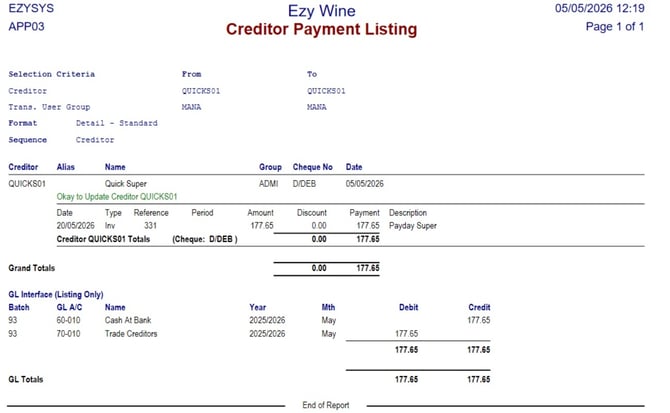
Review the report carefully to confirm you are paying the correct amount before proceeding.
💡Tip: In EZYPro, the GL postings are included on all report formats, so you can pick whichever format best suits your review and still see the GL figures for verification.
5. Print the Creditor Remittance (APP06) — if required
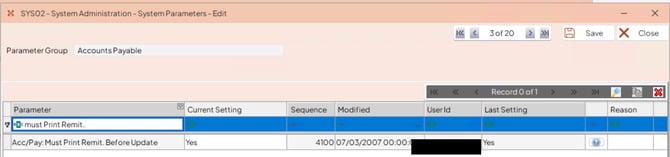
ℹ️ Note: This step is mandatory if the system parameter Acc/Pay: Must Print Remit. Before Update is set to Yes at your site — when this parameter is enabled, the Creditor Remittance must be printed before the payment can be updated. If the parameter is set to No, this step is optional but recommended as a record of the payment before proceeding to Section 6.
To check this parameter: Navigate to System Administration > System Parameters (program SYS02). In the Group field type ACC and click Search to find the Accounts Payable parameter group, then click Edit. Filter the parameter list by typing Print Remit to locate the parameter Acc/Pay: Must Print Remit. Before Update.
Whether this parameter is set to Yes or No is a company decision; please consult with your team management before making any change. The location above shows you where the setting can be reviewed or updated.
Navigate to Accounts Payable > A/P Payments > Creditor Remittance Print (program APP06).
The APP06 screen has two tabs:
- Selection — where you filter the remittance by Creditor and other selection criteria.
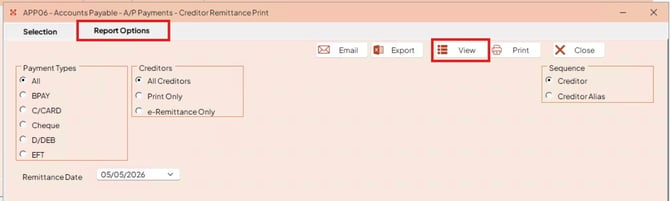
- Report Options — where you set Payment Types, Remittance Date, Sequence and other report settings.
💡Tip: The View, Print, Email and Export buttons appear on both tabs — you can run the remittance from whichever tab you are currently on.
On the Selection tab, enter your superannuation fund creditor code in both the From and To Creditor fields (e.g. QUICKS01 to QUICKS01) so the remittance is generated for this creditor only. Use the three-dot search tool (...) next to either field if needed.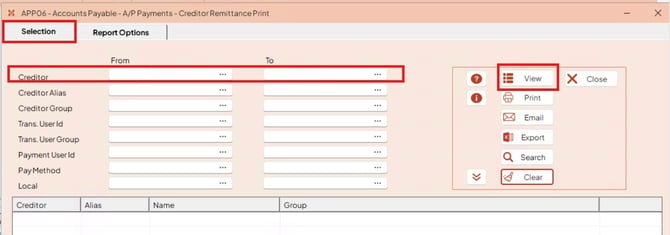
Leave the remaining selection criteria fields (Creditor Alias, Creditor Group, Trans. User Id, Trans. User Group, Payment User Id, Pay Method, Local) blank.
Switch to the Report Options tab to confirm or set the report settings:
|
Field |
Recommended Setting |
|
Payment Types |
All unless restricting to a specific payment type (BPAY / C/CARD / Cheque / D/DEB / EFT) |
|
Creditors |
All Creditors (other options are Print Only and e-Remittance Only — only use these if you need to limit to creditors set up for printed or e-remittance delivery) |
|
Sequence |
Creditor (default) or Creditor Alias |
|
Remittance Date |
The remittance date — typically the pay run date (e.g. 05/05/2026) |
Click View to preview the remittance on screen, Email to send it directly to the super creditor (the most common option), or Print if you need a hard copy. You can also Export the remittance to file. (All these actions are available from either tab.)
💡Tip: It is good practice to View the remittance first to confirm the details are correct before emailing or printing.
6. Update the Payment (APP07)
Once you have reviewed and confirmed the figures on the Creditor Payment Listing (and issued the remittance — emailed, printed or exported — if required), navigate to Accounts Payable > A/P Payments > Creditor Payment UPDATE (program APP07) to update the payment.
❗CRITICAL: Set the Creditor From/To fields before you Update. If the From and To Creditor fields are left blank, EZYPro will update all creditor payments that have been generated — not just your super payment. Always restrict the update to your specific super creditor by entering the creditor code in both the From and To fields before clicking Update.
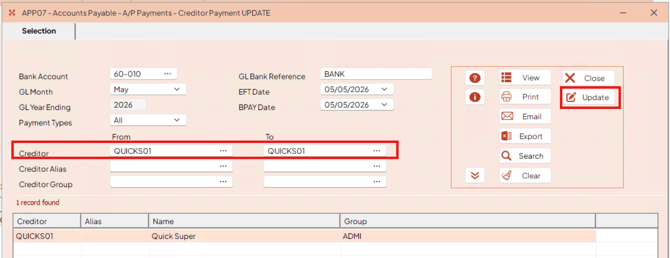
Confirm the following fields are set correctly for this pay run:
|
Field |
Description |
|
Bank Account |
The GL bank account code that represents the bank account the payment will be drawn from (e.g. 60-010) — use the three-dot search tool (...) if needed |
|
GL Month |
The GL period the payment will post to (e.g. May) |
|
GL Year Ending |
The GL year (e.g. 2026) |
|
Payment Types |
Set to All unless you need to restrict by payment type (BPAY / C/CARD / Cheque / D/DEB / EFT) |
|
GL Bank Reference |
The reference that will appear in the GL ledger (e.g. on the GLR07 ledger report) against the bank account transaction. It should represent the payment method used — e.g. EFT, BPAY, BANK (for cheque) or DD (for direct debit) — so the payment type can be identified at a glance when reviewing the GL. |
|
EFT Date |
The date the EFT will be processed — typically the pay run date |
|
BPAY Date |
The BPAY processing date — typically the pay run date |
💡Tip: Clicking the chevron (») on the right of the Selection panel expands additional Selection Criteria filter fields — Trans. User Id, Trans. User Group, Payment User Id, Pay Method and Local. These should all be left blank when processing a super payment.
⚠️Important: The EFT Date and BPAY Date must both fall within the same month as the GL Month. If either of these payment dates is in a different month to the GL Month, the update will fail. Always check the dates align with the GL Month before proceeding.
💡Tip: GL Bank Reference: Set this consistently for each payment method (e.g. always use EFT for EFT payments, BPAY for BPAY, BANK for cheques, DD for direct debits). When you review the bank account in the GL Ledger (program GLR07), the reference appears against each transaction so you can quickly distinguish payment types.
In the Selection Criteria section, enter your superannuation fund creditor code in both the From and To Creditor fields (e.g. QUICKS01 to QUICKS01). Use the three-dot search tool (...) next to either field if needed. This restricts the update to only this creditor’s payment.
⚠️Important: Reminder. As called out at the top of this section — leaving the From/To Creditor fields blank will update all outstanding creditor payments. Always confirm the From/To fields are populated with your super creditor code before clicking Update.
Leave the remaining selection criteria fields (Creditor Alias, Creditor Group, Trans. User Id, Trans. User Group, Payment User Id, Pay Method, Local) blank.
Click View in the right toolbar to generate a preview of the payment update before committing.
⚠️Important: Reminder. As called out at the top of this section — leaving the From/To Creditor fields blank will update all outstanding creditor payments. Always confirm the From/To fields are populated with your super creditor code before clicking Update.
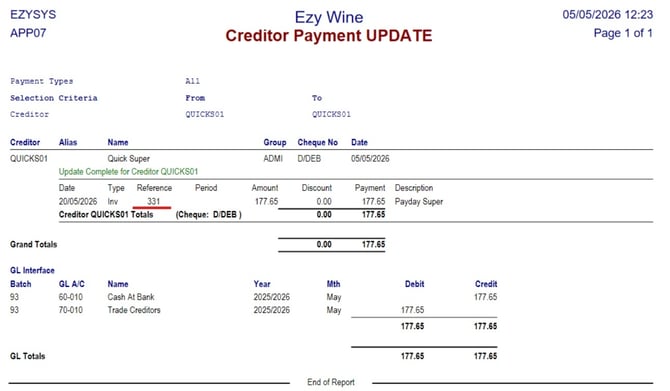
Once you have confirmed all details are correct, click Update to complete the update. A confirmation popup will appear — click Yes to proceed. After a successful update, the Creditor Payment UPDATE report will be generated showing the posted payment details with the message "Update Complete for Creditor [code]" in green.
⚠️Important: The EFT Date and BPAY Date must both fall within the same month as the GL Month. If either of these payment dates is in a different month to the GL Month, the update will fail. Always check the dates align with the GL Month before proceeding
💡Tip: GL Bank Reference: Set this consistently for each payment method (e.g. always use EFT for EFT payments, BPAY for BPAY, BANK for cheques, DD for direct debits). When you review the bank account in the GL Ledger (program GLR07), the reference appears against each transaction so you can quickly distinguish payment types.
In the Selection Criteria section, enter your superannuation fund creditor code in both the From and To Creditor fields (e.g. QUICKS01 to QUICKS01). Use the three-dot search tool (...) next to either field if needed. This restricts the update to only this creditor’s payment.
⚠️Important: Reminder. As called out at the top of this section — leaving the From/To Creditor fields blank will update all outstanding creditor payments. Always confirm the From/To fields are populated with your super creditor code before clicking Update.
Leave the remaining selection criteria fields (Creditor Alias, Creditor Group, Trans. User Id, Trans. User Group, Payment User Id, Pay Method, Local) blank.
Click View in the right toolbar to generate a preview of the payment update before committing.
Once you have confirmed all details are correct, click Update to complete the update. A confirmation popup will appear — click Yes to proceed. After a successful update, the Creditor Payment UPDATE report will be generated showing the posted payment details with the message "Update Complete for Creditor [code]" in green.
Next steps depend on the creditor’s payment method
Look at the Cheque No column on the Creditor Payment UPDATE report — it shows the payment method used. Your next step depends on which method the super creditor is set up for:
|
Payment Method |
Next step |
|
EFT |
Continue to Section 7 — Generate the EFT File (APP12). |
|
BPAY |
Continue to Section 8 — Generate the BPAY File (APP19). |
|
D/DEB (Direct Debit) |
Continue to Section 9 — Verify the Batch. No file generation is required. When you upload the super export CSV file to your clearing house (e.g. QuickSuper), the clearing house may automatically trigger a direct debit from your bank account for the payment amount. Or you will manually generate an OSKO PAYMENT (PAYID) from your bank account. |
|
Cheque / C/CARD |
Continue to Section 9 — Verify the Batch. Process the payment via your usual cheque or credit-card workflow outside of EZYPro. |
ℹ️Note: or Direct Debit: If your super creditor is set up for direct debit (Cheque No shows D/DEB on the report), the payment will be triggered automatically by the clearing house when the super export file is uploaded — you do not need to generate a separate ABA / EFT file or initiate the payment in your bank portal.
7. Generate the EFT File (APP12) — EFT creditors only
After the payment has been successfully updated in APP07, you can generate the EFT file ready for upload to your bank.
Navigate to Accounts Payable > A/P Payments > Generate EFT File (program APP12).
In the Payment Batch field, enter the batch number from the APP07 update, or click the three-dot button (...) to open the search tool and select from the available batches. The batch number matches the one shown on the APP07 Creditor Payment UPDATE report.
Ensure the EFT Date is set to today’s date (or a future date if the payment is being forward dated).
Verify the bank account details displayed below match the correct paying bank account.
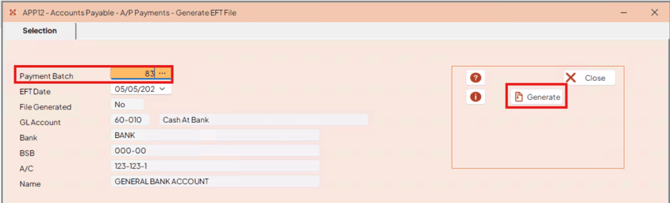
⚠️Important: Multiple bank accounts: If your business has more than one bank account set up, EZYPro will display the bank details that match the GL Account linked to the selected payment batch. Check the GL Account, Bank, BSB, A/C and Name carefully to confirm you are drawing the EFT from the correct account before clicking Generate. Generating an EFT file against the wrong bank account will cause the payment to fail or draw from the incorrect account.
When all details are correct, click Generate in the right toolbar to generate the EFT file.
The fields on this screen are:
|
Field |
Description |
|
Payment Batch |
The payment batch number generated by the APP07 update — the value highlighted on this screen until you select a valid batch |
|
EFT Date |
The date the bank will process the EFT — must be the current date (today) or a future date. The bank will reject the EFT file if the date is in the past. |
|
File Generated |
Read-only — displays No before the file is generated, and updates once the EFT file has been created |
|
GL Account |
The GL bank account code and description (e.g. 60-010 — Cash At Bank) for the bank account the EFT will draw from |
|
Bank / BSB / A/C / Name |
The bank short name, BSB, account number and account name that the EFT file will be drawn from |
⚠️Important: If the EFT Date is earlier than today, do not proceed — the bank will reject the file. Always set the EFT Date to today or a future date.
Saving the EFT File
When you click Generate, EZYPro will open a Windows Save As dialog so you can choose where to save the EFT file ready for upload to your bank.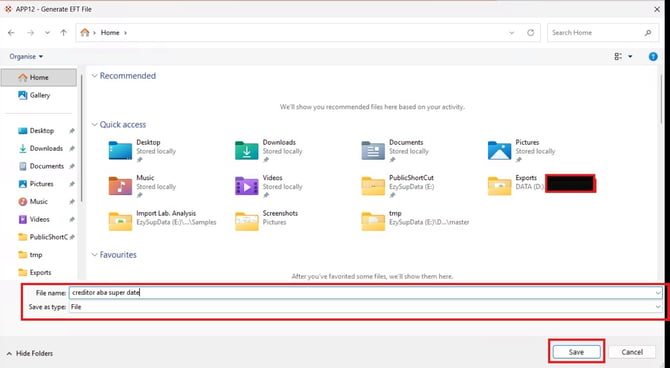
Navigate to your usual EFT / banking folder (or the location your finance team uses for bank upload files).
Enter or confirm the File name — give the file a meaningful name that includes the payment type and date so it’s easy to identify later and add the .aba extension so it is recognised as an ABA file
Example: creditor_super_010526.aba or super_payment_010526.aba
Leave Save as type as File.
Click Save.
⚠️Important: File extension: ABA (Australian Bankers’ Association) is the standard file format for Australian batch payments. Most banks require the file to have a .aba extension to be recognised and accepted for upload. EZYPro saves the file in plain ABA format but does not automatically append the extension — you need to add .aba to the file name yourself when saving. If you forget, you can rename the file in Windows Explorer afterwards.
💡Tip: Confirm your bank’s specific file requirements (extension, naming convention) when first setting up your EFT upload process.
CYBER-SAFETY REMINDER- EFT & BPAy files contain bank account details and payment instructions and can be used to authorise real money transfers.
Always:
-
Save EFT files to a restricted-access folder (not the Desktop or a shared drive accessible to everyone)
-
Never email EFT files
-
Delete the file from your local machine once the bank has confirmed the payment has been processed
8. Generate the BPAY File (APP19) — BPAY creditors only
ℹ️ Note: This step is only required if the superannuation creditor’s payment method is set to BPAY. If the creditor is paid by EFT, see Section 7. If the creditor is paid by Direct Debit or another method, skip this section.
After the payment has been successfully updated in APP07, you can generate the BPAY file ready for upload to your bank.
CRITICAL: Set the Creditor From/To fields before you Generate. As with APP07, if the From and To Creditor fields are left blank, EZYPro may include payments for all BPAY creditors in the file — not just your super payment. Always restrict the file to your specific super creditor by entering the creditor code in both From and To fields before clicking Generate.
Navigate to Accounts Payable > A/P Payments > Generate BPAY File (program APP19).
Set the File Format to the format your bank requires (e.g. CommBiz for Commonwealth Bank). Use the dropdown to see available options.
Confirm the Payment Account — this is the GL bank account code (e.g. 60-010 — Cash at Bank) that the BPAY payments will be drawn from. Use the three-dot button (...) to look up the correct account if needed.
Set the Payment Date to today’s date (or a future date if the payment is being forward dated).
In the Creditor From and To fields, enter your superannuation fund creditor code in both fields (e.g. QUICKS01 to QUICKS01) to restrict the file to that creditor only. Use the three-dot search tool (...) if needed.
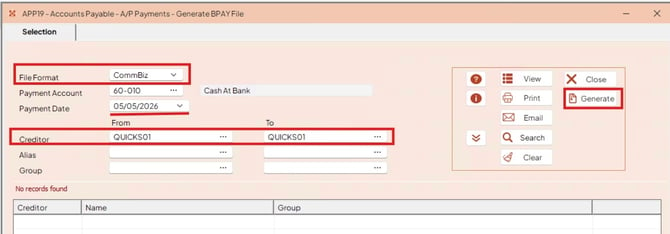
Leave the Alias and Group From/To fields blank.
Click Generate in the right toolbar to generate the BPAY file.
The fields on this screen are:
|
Field |
Description |
|
File Format |
The BPAY file format your bank requires (e.g. CommBiz for Commonwealth Bank). Check with your bank if you are not sure which format to use. |
|
Payment Account |
The GL bank account code that the BPAY will draw from (e.g. 60-010 — Cash At Bank). Confirm this matches the correct paying bank account, especially if you have multiple bank accounts set up. |
|
Payment Date |
The date the bank will process the BPAY payment — must be the current date (today) or a future date. The bank will reject the file if the date is in the past. |
|
Creditor From / To |
Filter to your superannuation creditor (enter the same code in both fields). |
|
Alias / Group From / To |
Leave blank for super processing. |
Multiple bank accounts: If your business has more than one bank account set up, make sure the Payment Account matches the correct paying bank account before clicking Generate. Generating a BPAY file against the wrong bank account will cause the payment to fail or draw from the incorrect account.
⚠️Important: Payment Date warning: As with the EFT process, do not enter a back-dated Payment Date — the bank will reject the file when uploaded. Always set the Payment Date to today or a future date.
When you click Generate, EZYPro will open a Windows Save As dialog so you can choose where to save the BPAY file ready for upload to your bank — follow the same saving steps and naming conventions as for the EFT file (see Saving the EFT File in Section 7).
💡Tip: Some banks expect a specific file extension for BPAY files (similar to .aba for EFT). Confirm your bank’s expected extension and naming convention when first setting up your BPAY upload process.
9. Verify the Batch — EFT Listing (APP13) / BPAY Listing (APP21)
A verification listing is available for both EFT and BPAY batches:
- EFT creditors: use the EFT Listing report — program APP13
- BPAY creditors: use the BPAY Listing report — program APP21
Both reports serve the same purpose: they show the payment details for the batch you are paying, including the BSB / biller code, account / reference, amount, payee name and reference, so you can confirm the file is correct before (or after) uploading it to the bank.
Navigate to Accounts Payable > A/P Payments > EFT Listing (APP13) or BPAY Listing (APP21) — depending on which file you generated.
To find your batch, either enter the batch number in the Batch From and To fields (e.g. 83 to 83) and click View or click Search to load all available batches into the results list, then select the batch you want to verify and click View. 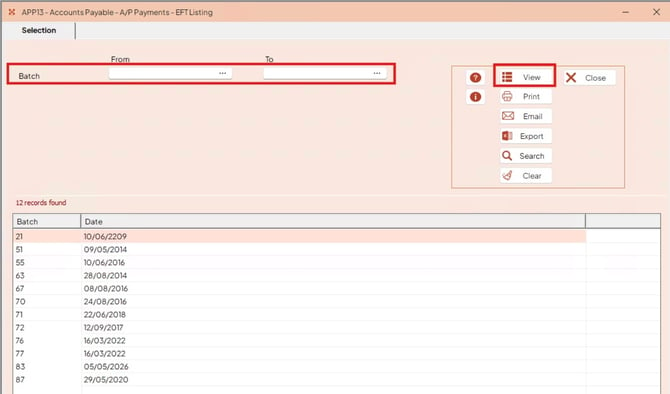
The report PDF will generate showing the payment details for the batch.
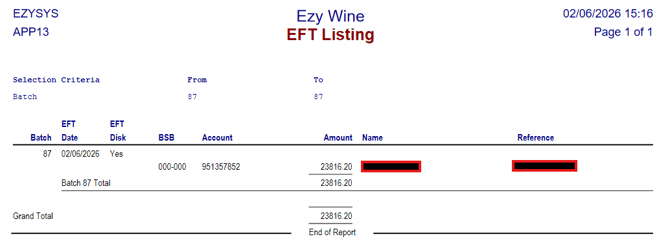
The report displays the following columns:
|
Column |
Description |
|
Batch |
The payment batch number |
|
EFT Date |
The EFT processing date set in APP12 |
|
EFT Disk |
Indicates whether the EFT file has been generated (Yes) or not yet generated (No) |
|
BSB |
The destination BSB (the superannuation fund / clearing house bank) |
|
Account |
The destination account number |
|
Amount |
The payment amount |
|
Name |
The payee name (e.g. Quick Super) |
|
Reference |
The reference that will appear on the bank statement (e.g. Superannuation) |
The report also displays a Batch Total and Grand Total so you can confirm the total amount matches the figures from the Creditor Payment UPDATE report (APP07).
💡Tip: Use the EFT Listing as a final check before uploading the EFT file to your bank. Confirm the BSB, account number, amount and reference all look correct, and that the Batch Total matches the superannuation amount from the pay run.
Recommend: Save a copy of the EFT or BPAY Listing (e.g. as a PDF) alongside the Creditor Payment UPDATE report in your pay run records — together they provide a complete audit trail of the superannuation payment.